

RF Online 2.1.5 · the original sci-fi MMORPG, free, English and Russian client
Play freeGetting started
The interface
The interface is how you and the game talk to each other. RF Online's interface is simple and intuitive. Below are the windows, menus and panels you will deal with while playing.
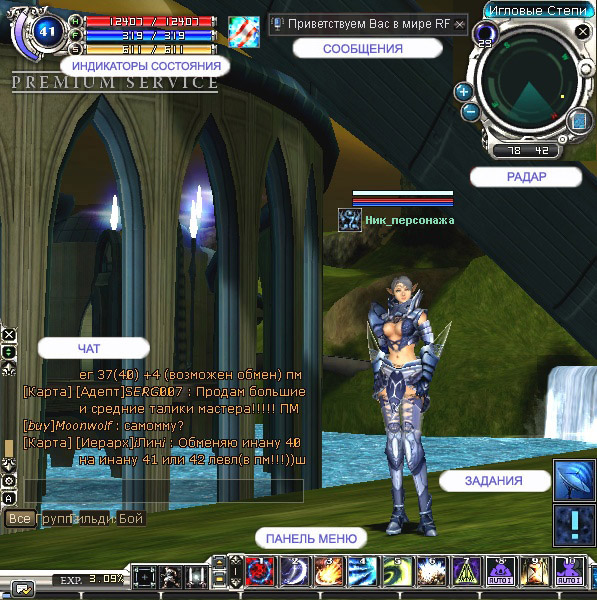
Character status indicators

HP / FP / SP
These show the character's current health, stamina, and the action points needed to use Force and skills. The character's HP, FP and stamina grow as the player gains levels and abilities.

HP drops when the character takes damage from attacks or spells, and rises with healing potions and abilities. Be careful: when HP reaches zero the character dies.

FP is the reserve of inner energy. It drops when you use special skills and Force, and rises with special potions and while resting.

SP is the character's stamina. It drops when running, jumping and using certain skills. SP also matters in combat, both melee and ranged.
Defence level
The defence level shows the state of the character's equipment. In combat it changes as the character takes damage. Some characters can restore their defence and their equipment's stats right in battle, and the equipment's defence can also be raised through the upgrade system with talics.

Safe level
Reached by upgrading with talics and raising defence to 100. Shown in blue.

Reduced level
Under constant attack the safe level drops to reduced, and defence and agility gradually fall. Shown in orange.

Danger level
Under continued attack in the reduced state, the defence and agility effects vanish and the danger level begins, where the equipment no longer gives its special effect. Shown in red.
Combat mode / peace mode
In combat mode the character has certain restrictions, for example on movement. Combat mode switches on automatically when the player attacks someone or is attacked. Peace mode returns 10–15 seconds after the fight ends.
| Combat mode | Peace mode | |
|---|---|---|
| Interface |  |  |
| When it switches | The moment you attack, or the moment an enemy attacks you (including MISS and BLOCK) | 15 seconds after the last enemy attack; 10 seconds after your last attack |
| Restrictions | You cannot quit the game. You cannot use expensive items or Battle Dungeon items (moving with special skills is possible) | None |
GM messages and important warnings

GM messages carry important game information or warnings. Always watch them, even in battle or while travelling.
Radar, location and time

Location
The name of the area the character is in.
Time
Day is shown by a sun, night by a moon.
Radar
The radar shows monsters, NPCs and other players relative to your character. Monsters are yellow, NPCs white, players of your race green, players of other races red. (R / Ctrl+R)
Map
Opening the map shows the area you are in. (M / Ctrl+M)
Chat

To start typing in the chat window press Enter; to stop, press Esc. The chat window also opens with T / Ctrl+T.
General chat
Messages to players nearby.
Party
Messages to players in your party.
Guild
Messages to guild members, wherever they are.
Announcements
Messages to everyone of your race, wherever they are (available only to race leaders and their deputies).
Quick access bar

This part shows information about the game's systems and holds the quick-access buttons.
Level and experience
A visual display of the current level and experience. The 10 cells at the bottom show the experience needed for the next level; one filled cell is 10%.
Mode switches
Icons that change how the character acts.

Attack mode (auto / manual) (Z / Ctrl+Z)

Walk / run (W / Ctrl+W)

Peace / combat mode (A / Ctrl+A)
Hotkey bar
Drag skill and item icons onto the hotkey bar to make handy buttons for F1–F10. There are 5 bar sets, switched with the arrows on the left of the bar or with Tab (Tab does nothing while the bars are not in use).

Main menu
The game's main functions.


The system menus:
01. Character info (C / Ctrl+C)
02. Skills (S / Ctrl+S)
03. Force (F / Ctrl+F) (not for the Accretia)
04. Animus summoning (U / Ctrl+U) (Cora only)
05. Party (P / Ctrl+P)
06. Guild (G / Ctrl+G)
07. Quest log: current and completed quests (J / Ctrl+J)
08. Macros: HP/FP/SP macros, auto actions, auto chat messages (Y / Ctrl+Y)

Inventory (I / Ctrl+I)

Graphics, sound and quit (O / Ctrl+O)
Requests

Here appear messages and warnings about trade requests between players, party invitations, the chance to change profession, and so on. Hover over the icon to see what it is about.
Cursors

01. Default: the normal state (movement)

02. Combat: over monsters or players of another race (attack)

03. Own race: over players of your race

04. Skills: a target for a skill (enemy, yourself, your race)

05. Force: a target for a Force (enemy, yourself, your race)

06. Pick up: over a dropped item

07. Dialogue: over an NPC
Try it in the game
This guide comes from the original RF Online. The same game runs here as version 2.1.5, free, on Windows and Mac.
Source: rfonline.ru (Innova, 2007–2009), recovered from the Internet Archive. original page